


Written By Om Gupta
Published By: Om Gupta | Published: Sep 04, 2023, 10:44 PM (IST)
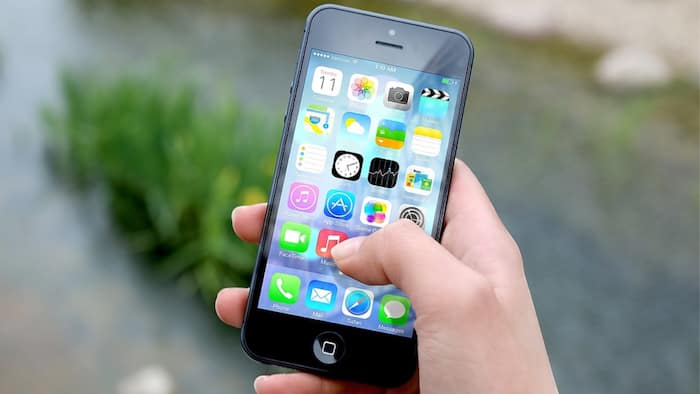
 Image Credit- (Pixabay)


Written By Om Gupta
If you want to keep your phone number private when making calls, you can use some simple tricks on your iPhone. Whether you need to call a company, a stranger, or a colleague, you can hide your caller ID and avoid unwanted spam or exposure. There are two ways to hide your number on your iPhone. The first one is to use a special code before dialling the number. The second one is to change a setting on your phone that will hide your number for all calls. If you find both ways interesting and want to learn how to hide your number on iPhone, here is a step-by-step guide on how to hide your number on iPhone.  Also Read: iPhone Fold Leak: Apple may bring iPad-style interface to foldable iPhone
There are two methods of hiding your number on your iPhone: using the keypad or using the settings app. Also Read: iPhone 17 Pro vs Samsung Galaxy S26 Ultra: DxOMark reveals the real camera champion
Method 1: Using the keypad Also Read: Apple MacBook Neo, M5 MacBook Air, MacBook Pro and iPad Air Go sale in India begins today: Check details
Step 1: Open the Phone app and tap Keypad at the bottom of the screen.
Step 2: Dial *67 (including the asterisk) and enter the number that you wish to call.
Step 3: Tap the green phone button to connect. Your number or contact details will not be displayed to the person receiving your call.
Method 2: Using the settings app
Step 1: Launch the Settings app on your iPhone and scroll down and tap Phone.
Step 2: Look within the section called Calls and tap Show My Caller ID.
Step 3: Toggle off Show my Caller ID.
You can repeat these steps and tap the switch to turn it back on again if you decide you don’t want to hide your number any more.

Meanwhile, If you lose your Apple Watch, you can locate it using the Find My app on your iPhone or iCloud.com. The app can display where your Watch is or was, make it beep to help you find it, or secure and wipe it from afar. The Find My feature is on by default for the Apple Watch when you connect it with an iPhone that has it activated. The Watch can use LTE or Wi-Fi to send its location. If you find this feature interesting, we have a step-by-step guide on how to find a misplaced Apple Watch using an iPhone.

Don't Miss Out the Latest Updates. Subscribe to Our Newsletter Today!
