


Written By Divya
Published By: Divya | Published: Jan 28, 2026, 07:39 PM (IST)


Written By Divya
Editing photos doesn’t have to feel like work anymore. No sliders, no tiny controls, no guessing what does what. Google has rolled out new AI-powered editing tools in Google Photos for users in India, and the idea is simple: just tell the app what you want to change. You can type it or say it out loud, and the edit happens.  Also Read: Gmail update for iPhone makes sharing Google Photos easier: Here’s how
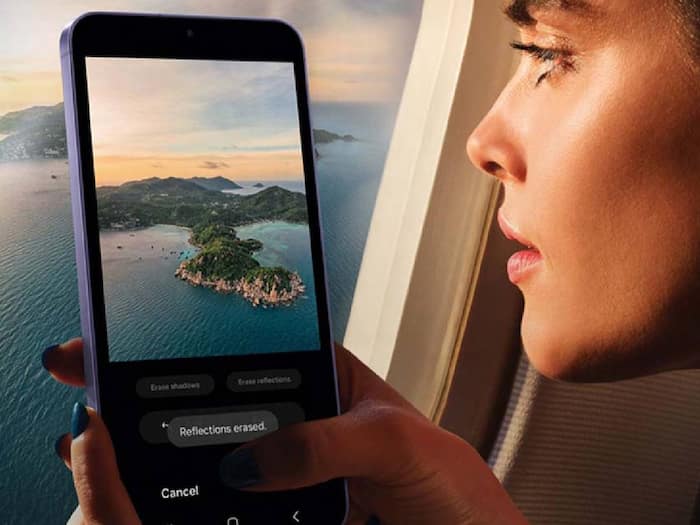
Instead of manually adjusting brightness, contrast, or background blur, Google Photos now lets you describe the edit in plain language. Want a softer background? Say it. Reflections ruining an otherwise good photo? Ask Photos to remove them. You can even stack multiple changes in one go, like fixing lighting, sharpening the image, and straightening it at the same time. Also Read: Free Apps Worth Installing on Every Phone
All of this is powered by Google’s Gemini AI, and it’s clearly built for people who want quick results without spending time learning editing tools.
You can either type your request or use voice prompts. Voice works especially well when you want to make quick changes without tapping through menus. The best part is that you don’t need to be precise. Simple, everyday language works just fine.
Google Photos can handle common fixes like glare removal, lighting improvements, colour correction, sharpening, and even straightening photos, all from a single prompt. One of the more useful additions is editing people in photos. You can ask Google Photos to remove sunglasses, open someone’s eyes, or make them smile. These edits use your private face groups, which helps the AI understand faces better and apply changes more naturally, especially in group shots.
If you want to experiment a little, Google Photos also offers creative edits through Nano Banana. This lets you change photo styles, expand scenes, restore old images, or even add elements like furniture or pets. It’s not something you’ll use every day, but it’s fun when you want to play around.
How to edit images in Google Photos using text or voice
Here’s how to use the new feature:
These AI editing tools are available on Android phones running Android 8.0 or higher with at least 4GB RAM. Language support includes English, Hindi, Tamil, Telugu, Marathi, Bengali, and Gujarati.

Google is also adding C2PA content credentials to clearly label AI-edited images and show their edit history, which adds a layer of transparency to these changes.

Don't Miss Out the Latest Updates. Subscribe to Our Newsletter Today!
