


Written By Om Gupta
Published By: Om Gupta | Published: Nov 10, 2023, 09:03 PM (IST)


Written By Om Gupta
If you want to protect your privacy, you may want to limit how apps track your location on your iPhone. Many apps ask for your precise location by default when you first open them, but you may not notice that you can change this setting. Precise location means that apps can access your exact location, such as the building or house you are in. Approximate location means that apps can only see your general area, such as the city you are in. Apple says that this setting allows apps to use your specific location when it is on, and only your approximate location when it is off.  Also Read: Apple WWDC 2026 confirmed for June: Check dates, schedule, expected announcements
Some apps may need your precise location to work properly, such as navigation or delivery apps. However other apps may not need it and may use it for advertising or other purposes. You can choose which apps can use your precise location and which ones can’t. In this guide, we will show you how to turn off precise iPhone location tracking for apps and services that don’t need it. Also Read: iOS 26.3.1 (a) brings Background Security Improvements: What it fixes and why you should install it
A step-by-step guide on how to stop apps from tracking your precise location on iPhone Also Read: New budget iPad may finally get Apple Intelligence support in 2026
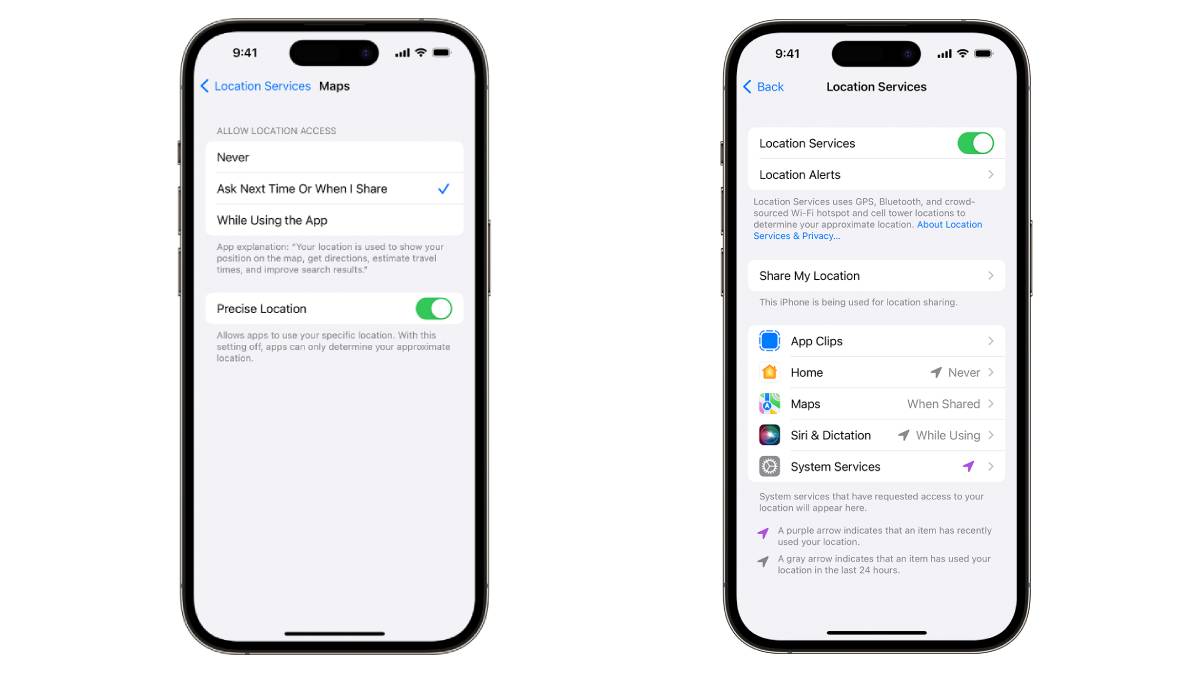
Step 1: Open the Settings app on your iPhone
Step 2: Tap Privacy & Security
Step 3: Tap Location Services
Step 4: Choose an app from the list that you want to change
Step 5: Tap the toggle next to Precise Location to turn it off
You can also turn off precise location tracking when an app asks for your location for the first time. The main choices when the location tracking dialogue appears after opening an app for the first time are “Allow Once, “Allow While Using App,” and “Don’t Allow.” Just tap the Precise: On button in the top left corner of the dialogue box and change it to Precise: Off.
When you turn off precise location tracking, apps can still see your approximate location. If you want to stop an app from tracking your location at all, choose Never at the top of the app’s location settings. If you want to disable location tracking for all apps, turn off the main Location Services switch at the top of the Location Services settings.


Don't Miss Out the Latest Updates. Subscribe to Our Newsletter Today!
