Written By Divya


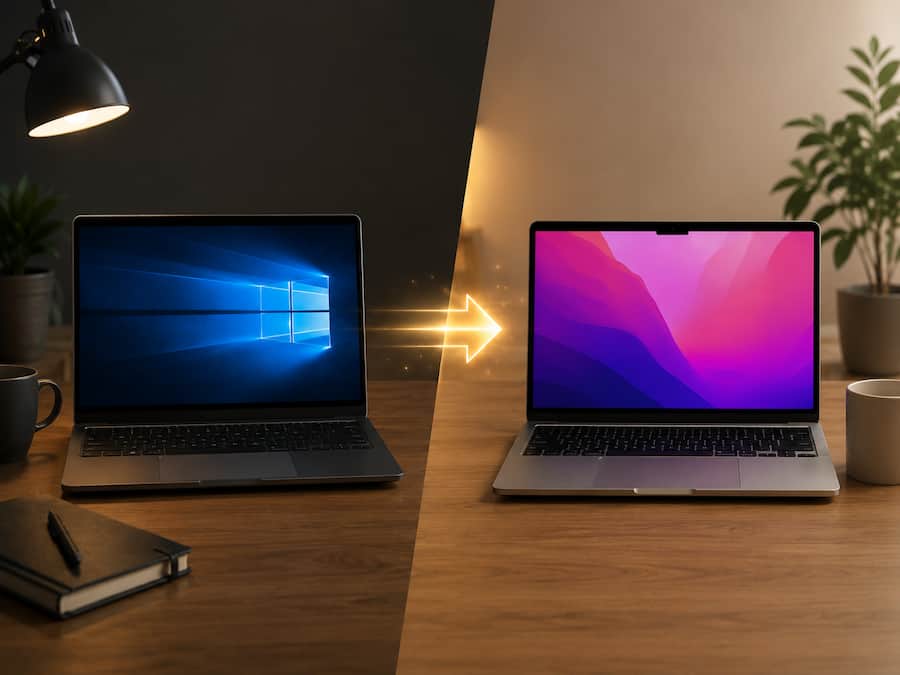
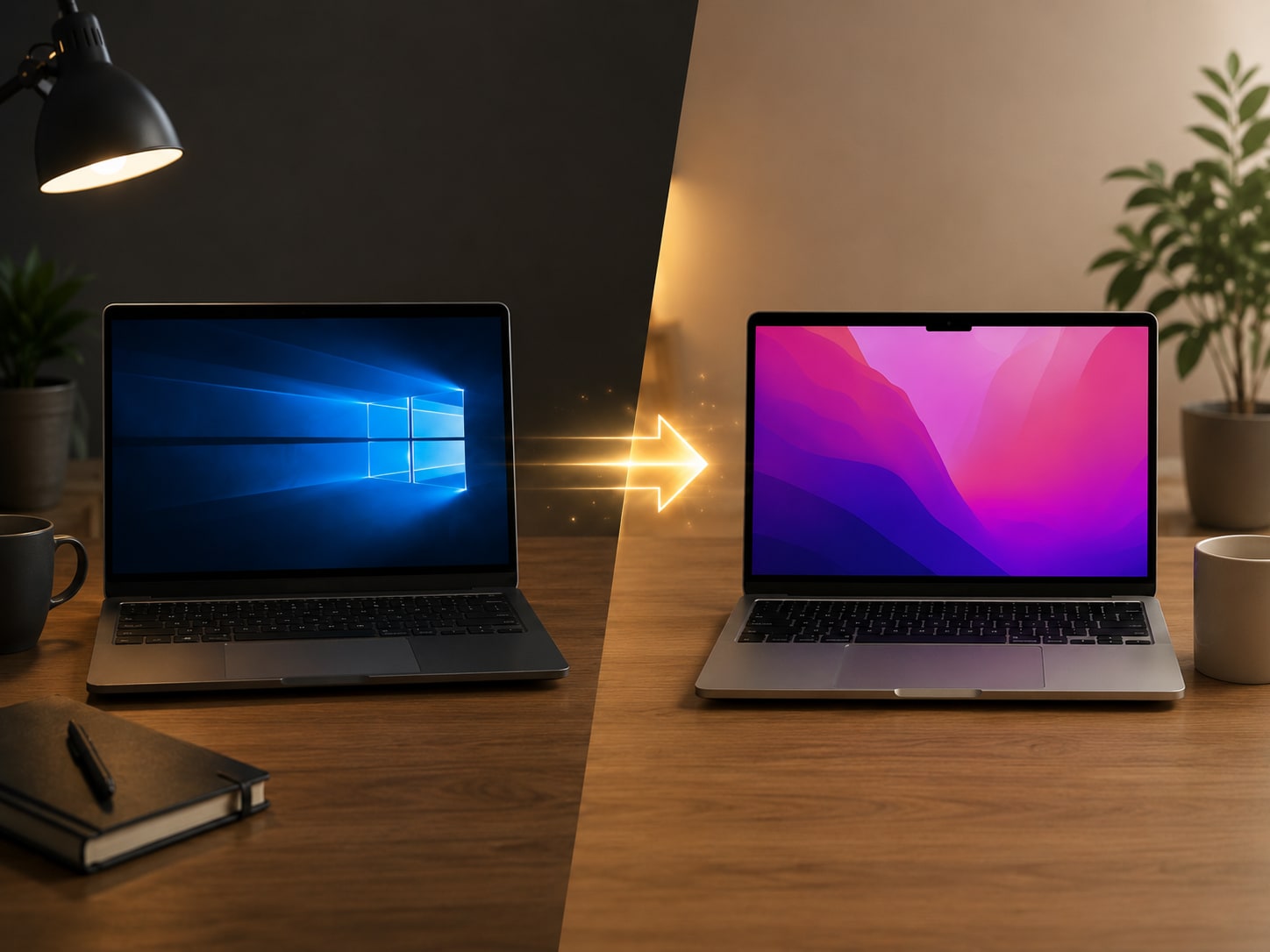
The first thing every Windows user should do is understand the Command key. Most shortcuts that use Ctrl on Windows switch to Command on a Mac. Copy, paste, screenshots, app switching, and many other actions depend on it.
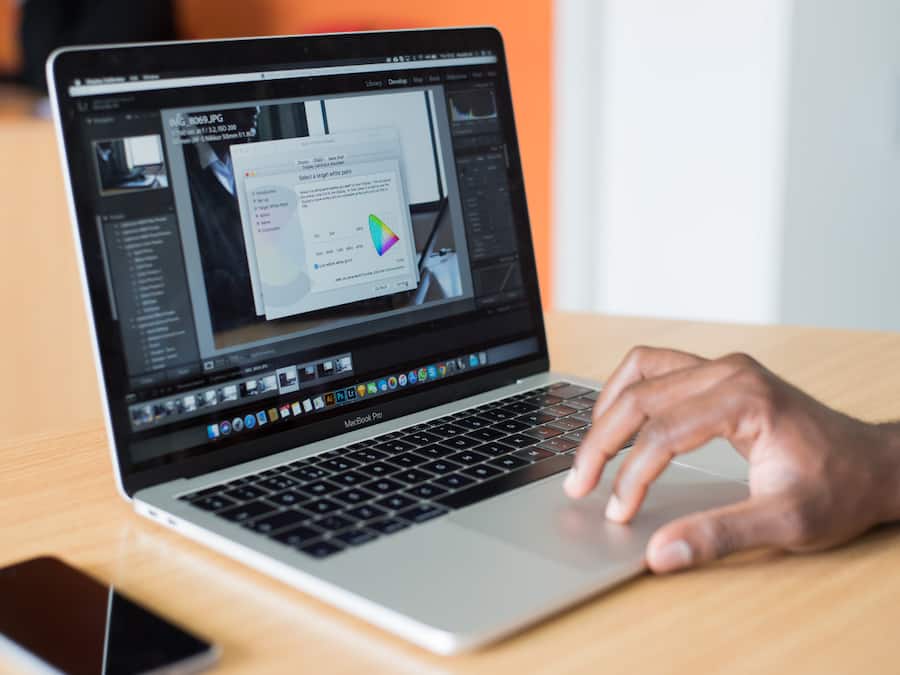
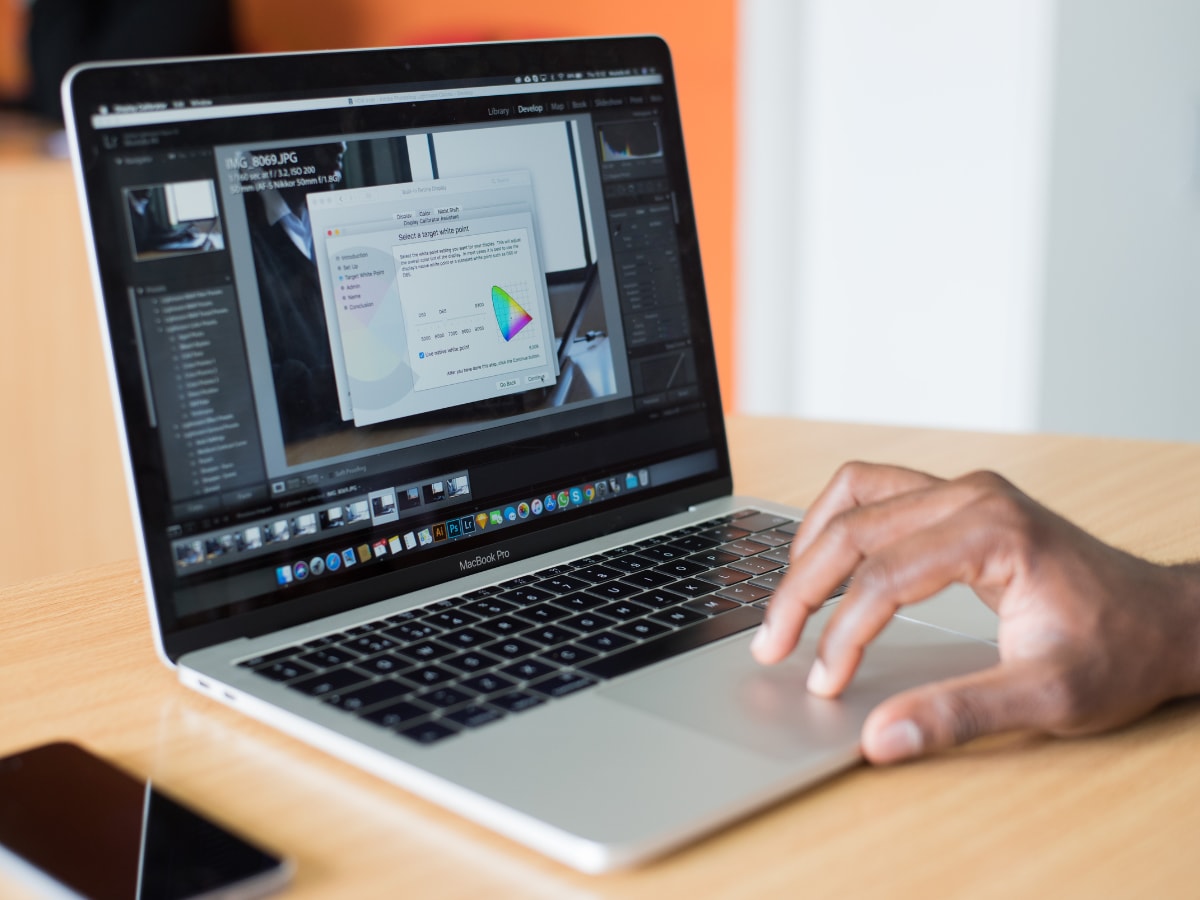
By default, macOS requires pressing the trackpad for clicks. Enabling Tap to Click makes navigation feel quicker and more natural, especially for users coming from Windows laptops.


MacBooks offer useful gestures for multitasking. Features like Mission Control, App Exposé, and three-finger swipes can help you switch between apps and desktops much faster.


The Dock is macOS's version of the taskbar. Remove unnecessary apps, pin frequently used ones, and adjust its size to make daily navigation simpler and cleaner.


Some apps you used on Windows may not be pre-installed. Setting up Chrome, Microsoft Office, WhatsApp, VLC, and other daily-use apps helps make the transition easier.


Finder replaces Windows File Explorer. Understanding how folders, tags, search, and previews work can save a lot of time when managing files on macOS.


If you use an iPhone or iPad, enable features like AirDrop, Universal Clipboard, iCloud sync, and Phone Mirroring. These integrations are one of the biggest advantages of using a MacBook.
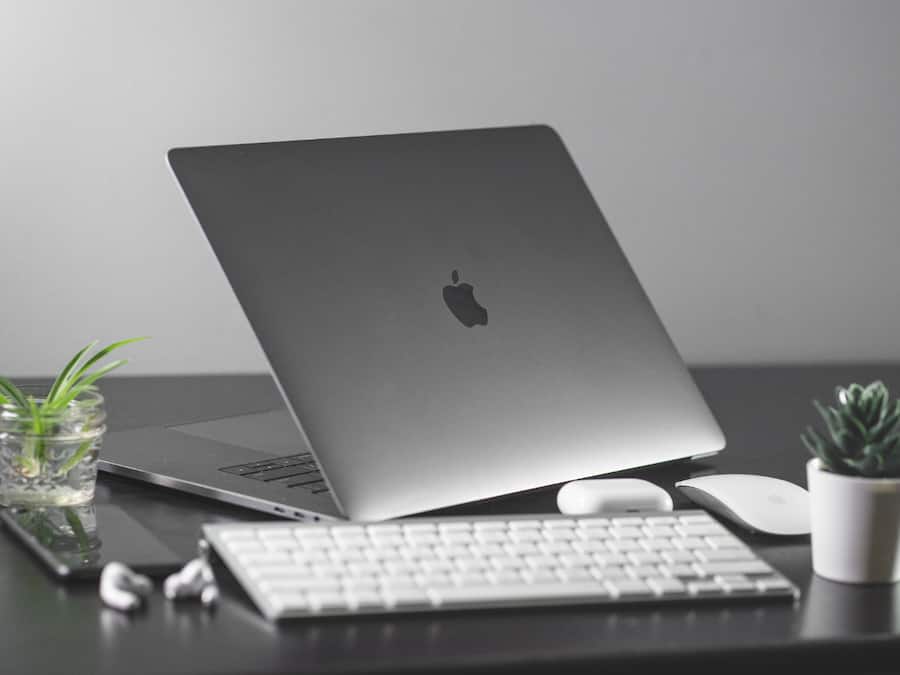

MacBooks are known for good battery life, but enabling Optimised Battery Charging can help maintain battery health over the long term while reducing unnecessary battery wear.

Don't Miss Out the Latest Updates. Subscribe to Our Newsletter Today!