Can the Asus Chromebook CX1400 replace your Windows laptop?
We tried it and answered this question for you.
Published By: Manik Berry | Published: Nov 07, 2023, 04:18 PM (IST)
Highlights
- The ASUS Chromebook CX14 starts at Rs. 21,999.
- It is running Chrome OS on an Intel Celeron chip.
- The Chromebook gets 2x USB-A ports, 2x USB-C ports, and latest WiFi 6 and Bluetooth 5.2.
I think it is really easy to think you can review a Chromebook if your entire workflow is on Chrome. It is a similar case with me, which is why I gladly agreed to try the Asus Chromebook CX1400FKA. The name is a mouthful just like the previous ASUS devices I've tried, but just like those devices, this is also focused at a particular user, and if you're eager to find out who, the answer is at the end of this article.
But if you've decided to stay with me, I'll take you through a conventional yet unconventional Asus Chromebook CX1400FKA review. Before we get started, this model starts at Rs 21,999. Now you can get a tablet for the same price, but then you'll spend on a case, a folio, and maybe more peripherals. But this machine already has a keyboard, touchscreen, and runs ChromeOS which is similar to Android. So even if you were in the market looking for an affordable tablet, do read this review to know what a Chromebook can do instead.
Asus Chromebook CX1400FKA specifications
| Specifications | ASUS Chromebook CX1400 |
|---|---|
| Processor(s) | Intel Celeron N4500 at 1.1 GHz |
| Graphics | Intel UHD graphics |
| Display | Touch screen, 14.0-inch, FHD (1920 x 1080) 16:9 LED panel with 250nits peak brightness |
| Memory | 4GB LPDDR4X on board, Memory Max Up to:4GB
8GB LPDDR4X on board, Memory Max Up to:8GB |
| Storage | 64G eMMC 128G eMMC Expandable storage microSD (up to 2TB) |
| Keyboard | Chiclet Keyboard, 1.4mm Key-travel |
| Webcam | 720p HD camera |
| Connectivity | Wi-Fi 6(802.11ax) Bluetooth 5.2 |
| I/O | 2x USB-A 3.2 Gen 1 2x USB-C 3.2 Gen 1 (power deliver/external display) |
| Audio | Front-firing speakers |
| Battery | 50WHr |
| Power Adapter | 45W USB-C AC Adapter |
| Dimensions (inches) | 12.85" x 9.01" x 0.73" |
| Colours | Transparent Silver |
Build and hinge
ASUS has nicely balanced the features on this machine. At this price, you get a Full HD touchscreen display. While the overall viewing angles and touch inputs work well, the brightness could be better. This screen maxes out at 250nits, which isn't ideal for outdoor usage, especially under direct sunlight. I used this laptop in the metro, and during commutes, and the display glare combined with low brightness could be an issue for some users. But if you're indoors or even in low lit areas, this screen can go dim enough to be easy on the eyes.
But a multimedia machine like this one is supposed to have good speakers. If you're using it in laptop form, the built-in speakers have enough punch to keep you immersed. However, in tablet form, the speakers are facing away from you, which reduces the overall loudness. But if you are in a closed room, the speakers are more than enough even in tablet mode to keep things going.
Asus Chromebook CX1400FKA keyboard: A steep curve
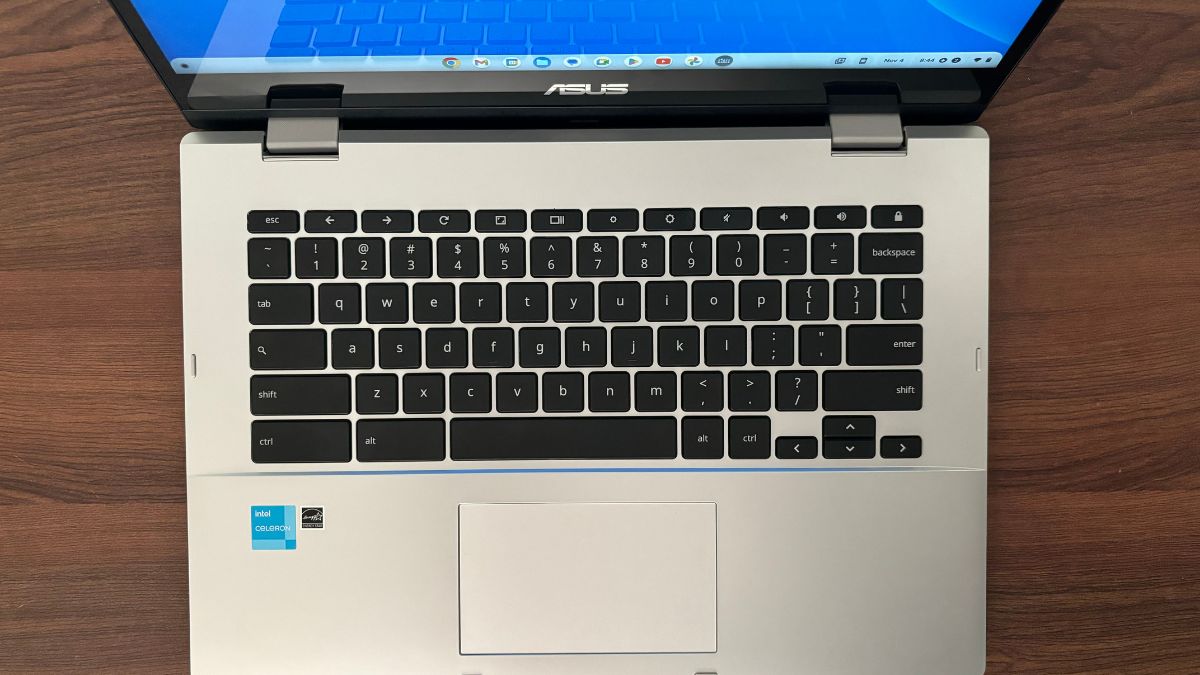
Remember I said at the beginning that I thought it would be an easy review because of Chrome? I took that back the moment I actually saw the laptop for the first time. It has a normal-looking keyboard, but it is nothing like Windows or Mac. There's no function keys row or a Windows/command button near the spacebar. Even the caps lock button is a search icon called the 'launcher' key.
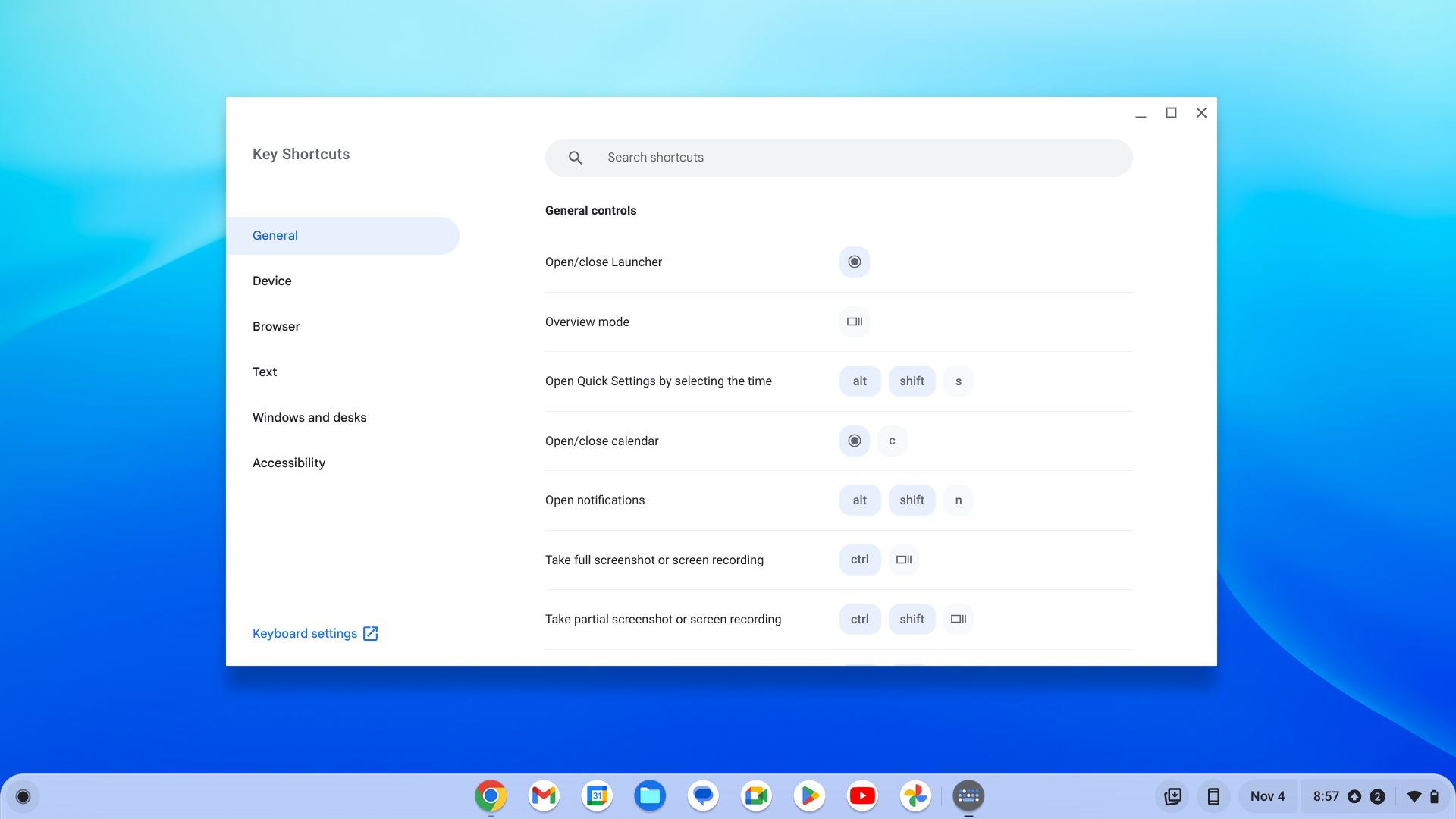
If you're a keyboard power user, then shortcuts like control + c/v/x/a all work just fine. However, press control + launcher + s, and you're greeted with a shortcut keyboard helper. There's a host of useful shortcuts here, but since the Chromebook has both touch and trackpad, you may not use the keyboard that much anyway.
The keyboard has an almost rough, textured feel to it. But the keys are well-spaced and have decent key travel. The texture also makes it possible to type faster, which was a new thing for me when I first used this laptop. On to the trackpad side, this is a pretty basic, regular-sized trackpad. The clicks are precise but not that tactile, and it is understandably that way, since the touchscreen is a faster input method in most cases.
What can a Chromebook do: Asus Chromebook CX14FKA performance
If you're going by the spec sheet, you know you can't expect apps like Photoshop or Premier to run the smoothest on this machine. However, Chrome OS will surprise you when it comes to how capable a machine can be. It is basically running Android on a larger screen, and that gives the ASUS Chromebook a really big advantage.
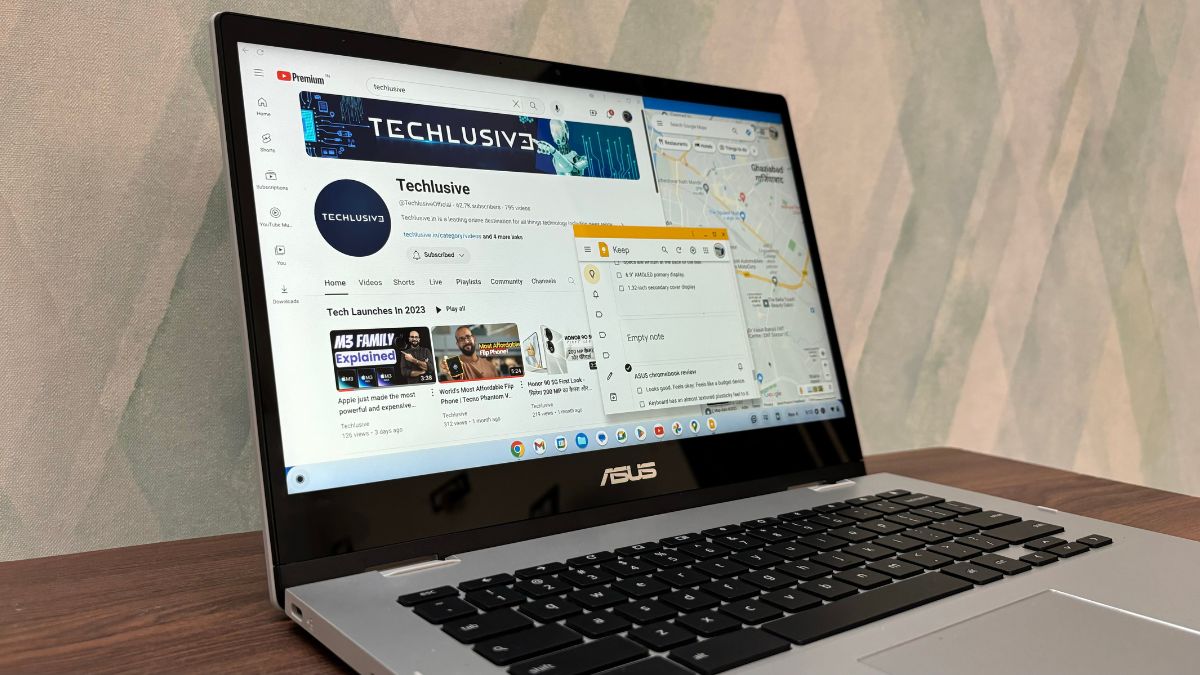
Almost every tool you use has a Chrome OS app, giving you two options. The first option is to download the app and get started. The second option expands what you can do. Simply open Chrome and start using the web version. So even if the Celeron chip won't support resource-intensive apps on its own, you can run pretty much anything as long as it's in Chrome.
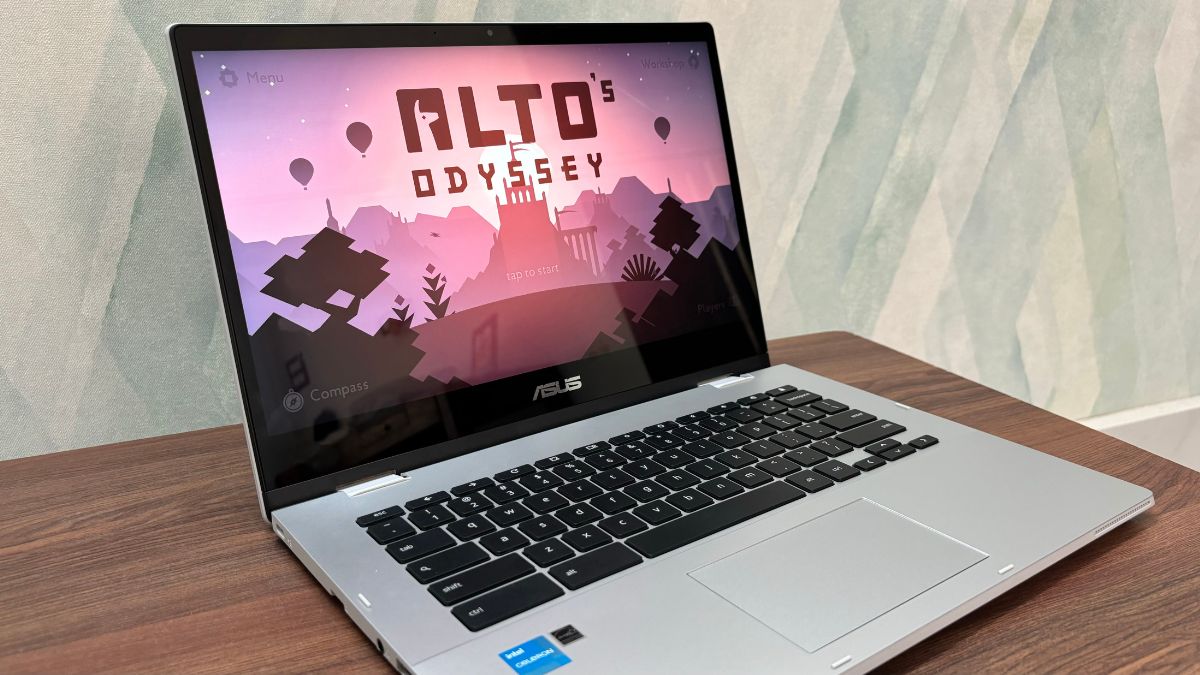
For instance, you can use Office 365 online, Google Docs, Canva, Adobe Photoshop web, and even play online games. Some Android games like Alto's Odyssey and Asphalt 9 are also downloadable, and the Chromebook handles them just fine. So in short, as long as your workflow remains inside Google Chrome, you can do pretty much anything. And outside Chrome, the Chromebook is snappy, responsive, and capable of handling pretty much all the productivity apps and some games too.
Battery and charging
The ASUS Chromebook comes with an Energy Star sticker, and it takes the sticker seriously. On mixed usage with about 10-15 Chrome tabs open, you'll get anywhere between 6 to 8 hours of battery. However, I was binge-watching Attack on Titan on this machine, and starting at around 9 PM, I got a low battery alert at 3 AM. So this Chromebook gets you 6 hours of binge-watching on one charge.
In my binge-watch test too, the Chromebook had 20% charge left when I plugged it in. It comes with a 45-watt USB-C adapter, which charges the machine in under 2 hours. It also runs fairly cool. The only time I found it heating up was when I refused to shut it down and just kept using it with the charger plugged in from 7 AM to around 10 PM.
Asus Chromebook CX1400FKA review: Verdict
As promised, here's the answer to "Who should buy the Asus Chromebook". If you're a student, or a writer, or your work revolves around Chrome or Android apps, you can buy this machine. Asus' pricing makes it a sweet deal for students, and the battery backup ensures you can use it for hours without worrying about it dying on you.
For writers and other office users, anything you can do in Chrome or on your phone, you can do on this machine. Even some light photo and video editing tasks run smoothly as you can install apps for them. Moreover, the 360-degree hinge, touchscreen, and affordable pricing also mean you can have it as a personal or secondary machine.
Now, heavy users like gamers, coders, and video editors are better off with a Windows or Apple machine. But at this price, there are no alternatives to the value that the Asus Chromebook CX1400 has to offer. You can buy a more expensive machine and get more value out of it, but in my testing, this Chromebook seems good enough for most users who primarily work on Chrome.
Lastly, if you've used a Chromebook alongside a Windows or Mac machine, do let us know your experience in the comments, and help everyone planning to buy a Chromebook.
Get latest Tech and Auto news from Techlusive on our WhatsApp Channel, Facebook, X (Twitter), Instagram and YouTube.