Accidentally shared a photo on Instagram Instants? Here’s how to undo it
Instagram’s Instants feature is rolling out and confusing users. Here’s how to disable it and retract photos you accidentally sent.
Published By: Shubham Arora
Published: May 15, 2026, 08:12 PM (IST)
Instagram has started rolling out a new feature called Instants, and a lot of users are still trying to understand how it actually works. The feature is designed around quickly sharing disappearing photos with friends, but many people ended up sending images accidentally the moment they tried it for the first time.
The feature has already started appearing for users globally and is now reaching users in India as well. Since the whole process works differently from regular Instagram posts or stories, several users are now looking for ways to either turn it off completely or unsend photos they shared by mistake.
How Instagram Instants works
Instants appears inside Instagram's inbox section. When you tap the small photo stack icon in the bottom-right corner of DMs, Instagram gives a short introduction explaining that photos disappear after being viewed and that replies stay private.
After that, the app directly takes users to the camera screen. Below the shutter button, there is a small option that lets you choose between "Friends" and "Close Friends."
The problem is that the feature is set to "Friends" by default. So the moment you tap the shutter button, the photo gets shared instantly with everyone included in that list unless you manually switch it beforehand.
Since Instagram doesn't clearly explain this part during setup, many users ended up sharing photos without realising they had already been sent.
How to unsend a photo accidentally shared through Instants
Instagram has added an Undo option, but it only stays visible for a short moment after the image is sent.
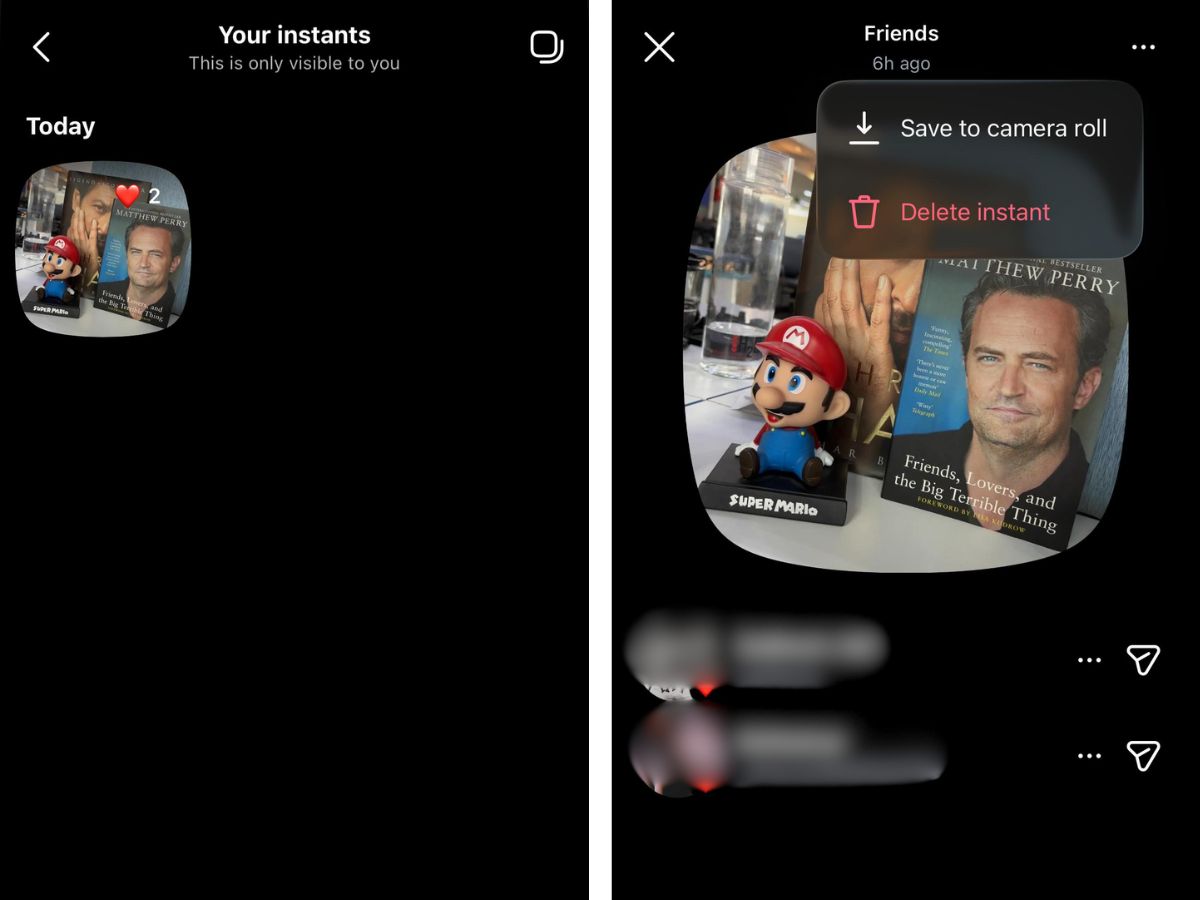
There is another method as well if you miss the Undo option.
This will unsend the image for people who have not viewed it yet.
How to turn off Instants on Instagram
Once enabled, the Instants section will disappear from your inbox. You also will not see Instants shared by others.
If you do not want to disable the feature completely, there is another option available.
Why users are getting confused
Most Instagram users are used to reviewing photos before posting them publicly or sharing them in DMs. Instants works differently because the image is shared immediately after capture.
That instant-send approach is what has caught many users off guard, especially those who thought they were still previewing the image before sending it.
Get latest Tech and Auto news from Techlusive on our WhatsApp Channel, Facebook, X (Twitter), Instagram and YouTube.