How to send WhatsApp messages without typing: Step-by-step guide
WhatsApp is a popular messaging app that you can use to chat with your friends but did you know you could send messages without typing? Read this guide.
Published By: Shubham Verma
Published: Feb 07, 2023, 07:14 PM (IST)
WhatsApp users like the instant messaging app because of how easy it is to use. The conventional way to interact with a phone, especially chat apps like WhatsApp, is by using a keyboard. But as mobile operating systems progressed to include more accessibility, users had more than one way to do that. I am talking about speaking on the phone to do things. At the helm of it are digital voice assistants and WhatsApp supports them. It is Google Assistant on Android and Siri on iPhones. And if you use these assistants, you can send WhatsApp messages without typing.
Now that I have told you how typing is no longer necessary to do things on your phone, let us talk about the part where you can send WhatsApp messages without typing. It is a simple process and mostly similar for both Android and iOS.
How to send WhatsApp messages without typing on Android
On your Android phone, you have Google Assistant, which helps you do several things with just a voice command. This is the same feature that will let you send a WhatsApp message without typing.
Open the Google app on your phone and tap on your profile photo in the top right corner
Navigate to Settings and then tap on Google Assistant
Alternatively, you can just say "Hey, Google" to summon the Google Assistant on your phone's screen
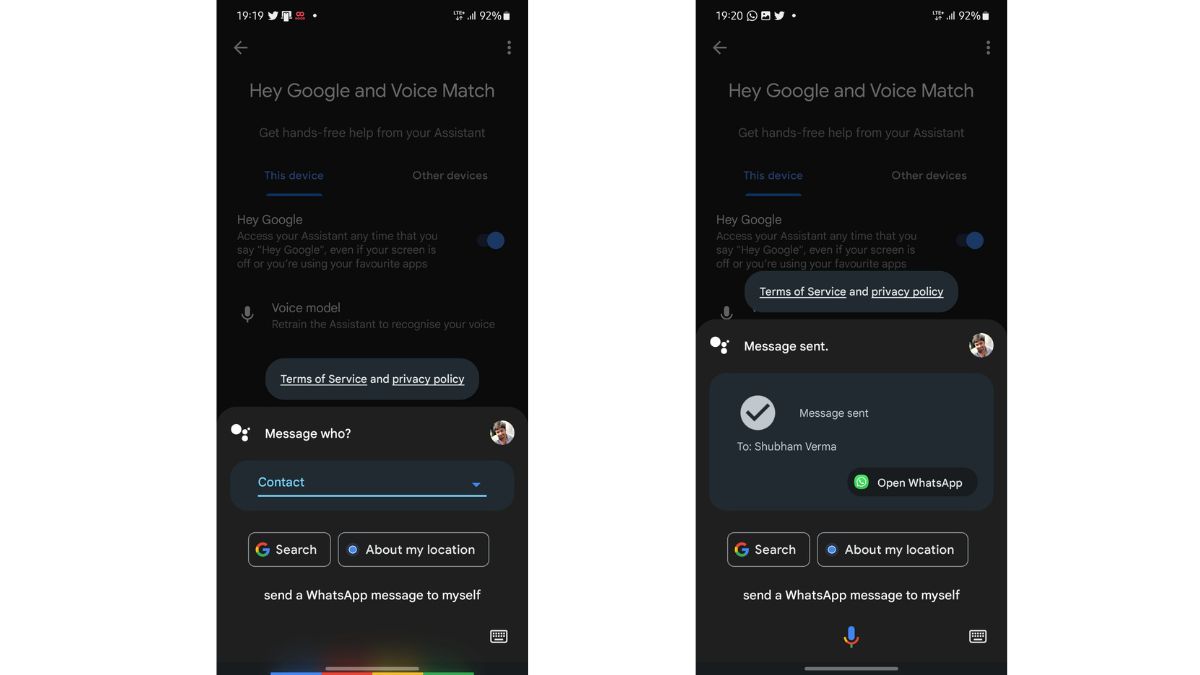
Now, you have to say "Send a WhatsApp message to [contact's name]"
You have to make sure the name you took is fed into your phone's contacts
Google Assistant will now ask you what message you want to send
Just say the message and Google will recognise it
The Google Assistant will now ask you to confirm if you want to send that message, to which you have to say "yes"
Your WhatsApp message to the chosen contact will be sent
How to send WhatsApp messages without typing on iPhone
The process is the same as Android's, but instead of Google Assistant, the digital assistant at your service is Siri.
On your iPhone, enable the "Hey, Siri" feature by navigating to settings, followed by a tap on the section where it says 'Siri'
Alternatively, you can program the power button to trigger Siri with a long press
Say "Hey, Siri," followed by the phrase "Send a WhatsApp message to [contact's name]"
You need to ensure the contact is stored in your iPhone's contacts library
Siri will ask you the message you want to send and you need to declare that
You will see the message you told Siri to send, followed by a confirmation call from Siri
Tell Siri to send that message and your message will be sent to the contact without needing you to type
An advantage of iOS is that the chat pops up on the screen after you have sent the message using Siri
Get latest Tech and Auto news from Techlusive on our WhatsApp Channel, Facebook, X (Twitter), Instagram and YouTube.